
Image Pre-Population lets you display a record’s existing images directly within a Smart Form, as a read-only gallery inside a File Upload element. This is useful whenever the person completing a Form needs to review images that were captured earlier. For example, when an engineer carries out a follow-up inspection, the photos attached to the original Work Order can be shown alongside the Form, so they can compare the reported fault against what they find on site. You can also apply a filter so that only the relevant files are displayed, rather than everything attached to the record.
Image Pre-Population depends on two pieces of configuration: the File Upload element's mapping, and your Sync Config. Both are covered below.
Configuring the Smart Form File Upload Element
On each File Upload element that should display the record’s existing images:
- Navigate to the “Mapping” tab.
- Enable “Attach file to the Form running record”.
- Specify the object to map to.
- Enable “Display files already attached to the record”.
- Optional: add a filter to control which files are displayed, for example
CONTAINS(title, "some text").
For more information on mapping files to the running record, see Relate Files to the Record Running the Smart Form.
In addition to 'title', the filter formula can also refer to 'description' and 'fileExtension'.
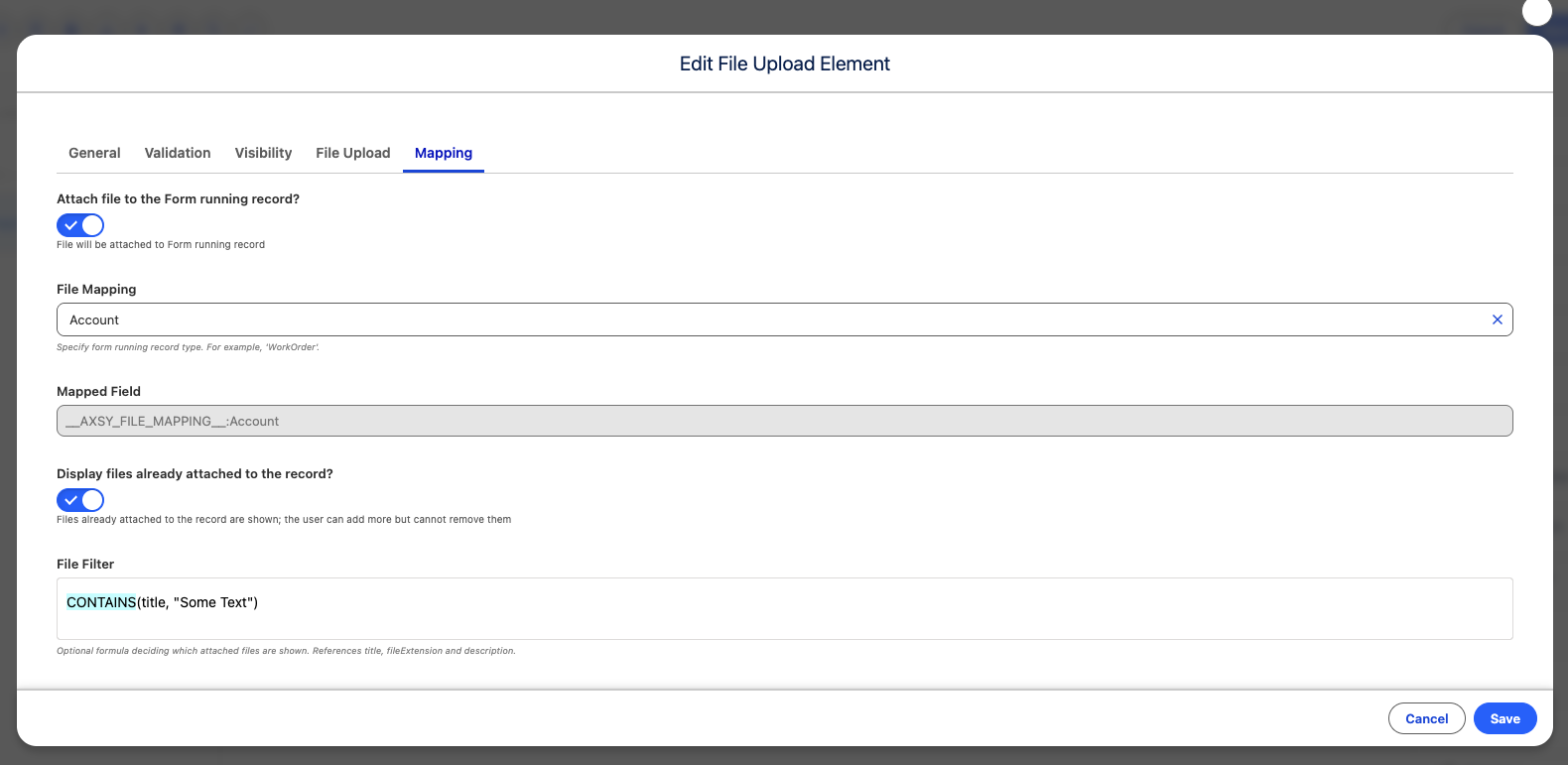
Figure 1 - File Upload Element Mapping
Configuring the Sync Config
For the attached files to be available to the Smart Form offline, add the following related objects to your Sync Config. Each object is a related object of the one before it, forming a chain from the running record down to the file:
- Add “ContentDocumentLink” as a related object of the object running the Smart Form (for example, Account).
- Add “ContentDocument” as a related object of “ContentDocumentLink”.
- Add “LatestPublishedVersion” as a related object of “ContentDocument”.
- Ensure “Files” is ticked for “LatestPublishedVersion”.
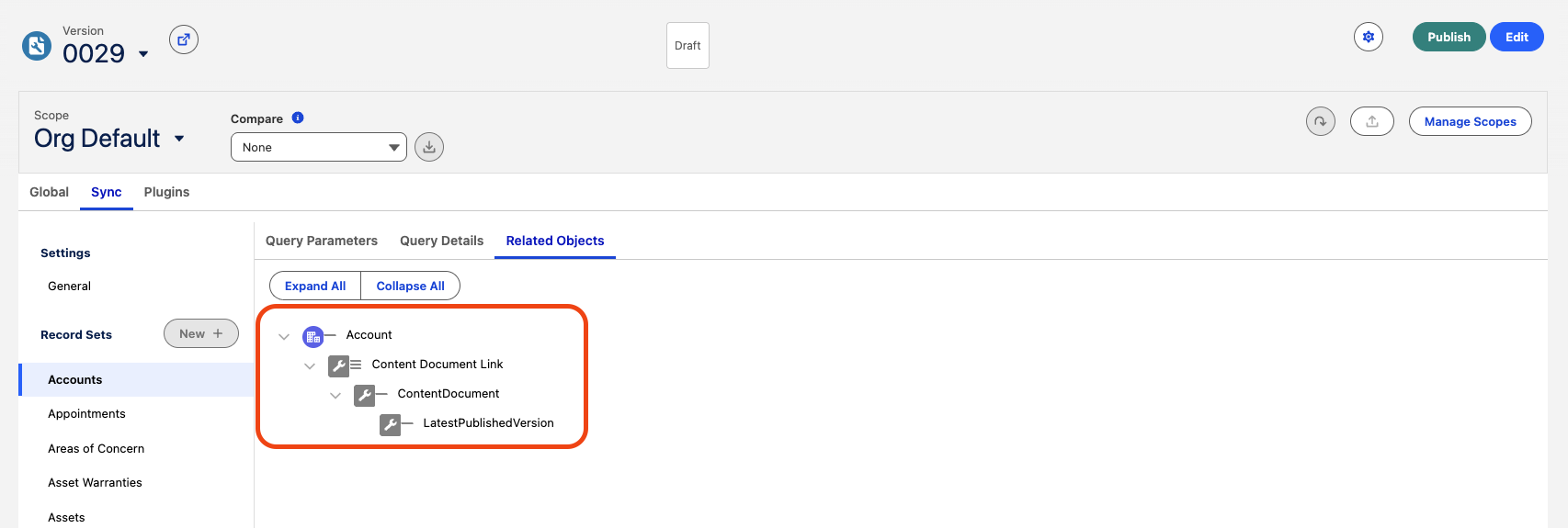
Figure 2 - Sync Configuration Related Objects
These related objects form a chain rather than each being added directly to the running record: Account → ContentDocumentLink → ContentDocument → LatestPublishedVersion.
For more information on configuring your Sync Config, see Configure the Related Object Tree.